
Connect an Electrometer
Connect an electrometer when you want Quadrant to collect charge readings directly during a TG-51 calibration wizard.
Supported Connections
Section titled “Supported Connections”| Device | Connection |
|---|---|
| MAX4000 (Serial) | Browser serial-port connection |
| SuperMAX (Serial) | Browser serial-port connection |
| DoseX (WebSocket) | Network connection using IP address and port |
For serial devices, use a browser that supports Web Serial. Quadrant currently directs users to Chrome, Edge, or Opera when serial support is unavailable.
Connect a Serial Electrometer
Section titled “Connect a Serial Electrometer”- Connect the electrometer to the computer.
- Prepare the electrometer according to your local procedure.
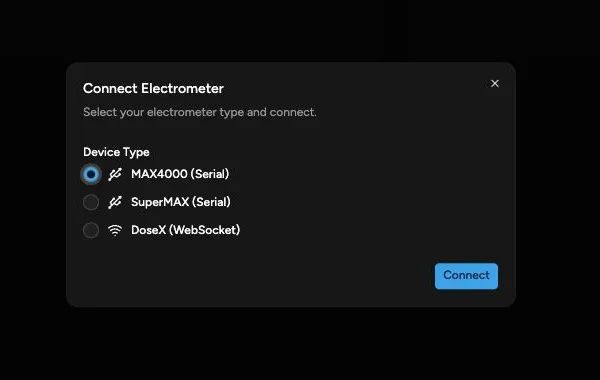
- In TG-51, click Connect in the shared toolbar or a charge-entry panel.
- Select MAX4000 (Serial) or SuperMAX (Serial).
- Click Connect.
- In the browser port chooser, select the port connected to the electrometer.
- Approve the browser connection.
- Confirm the TG-51 toolbar shows the connected device.
Connect a DoseX
Section titled “Connect a DoseX”- Confirm that the computer can reach the DoseX on the expected network.
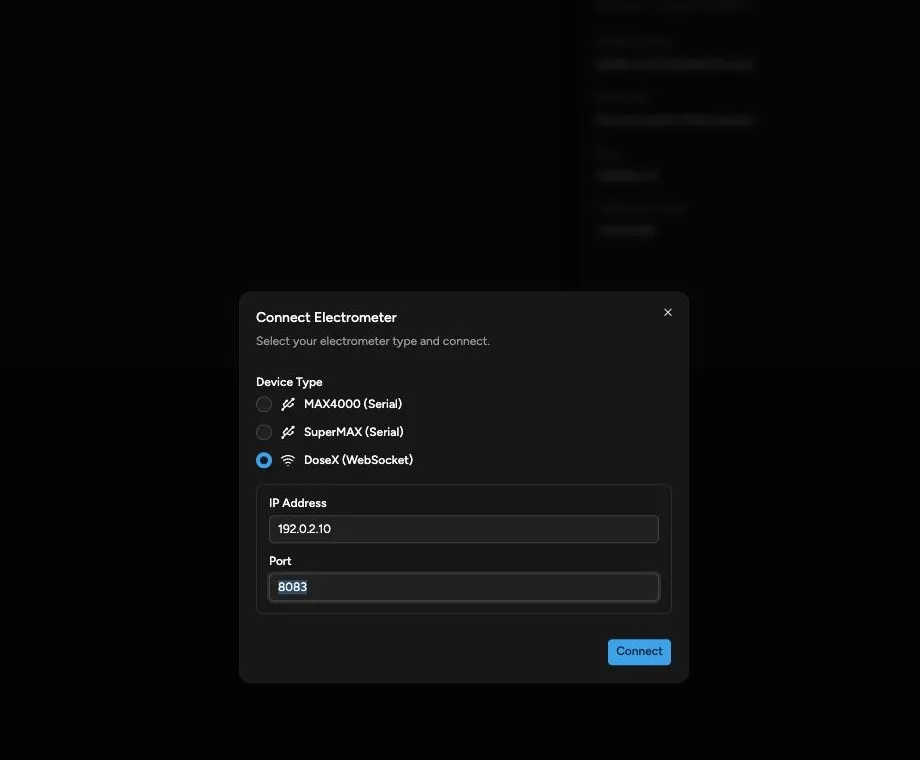
- Open Connect Electrometer.
- Select DoseX (WebSocket).
- Enter the IP Address.
- Enter the Port.
- Click Connect.
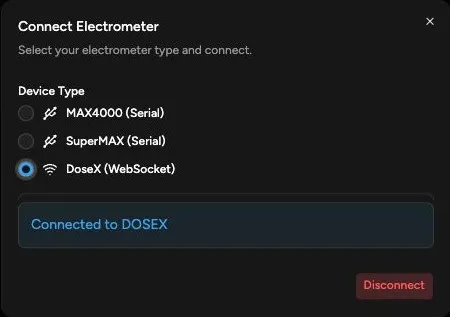
- Confirm the TG-51 toolbar shows DOSEX as connected.
DoseX must grant remote control before Quadrant can collect readings. If another client controls the device, release that connection before trying again.
Verify the Physical Device
Section titled “Verify the Physical Device”The live connection supplies readings. The electrometer on the Equipment page supplies the saved equipment and calibration information.
Disconnect
Section titled “Disconnect”Click the connected device in the TG-51 toolbar, then click Disconnect. Stop any active charge collection before disconnecting the cable or closing the browser.
Continue with Collect Charge Readings.