
Batch Export
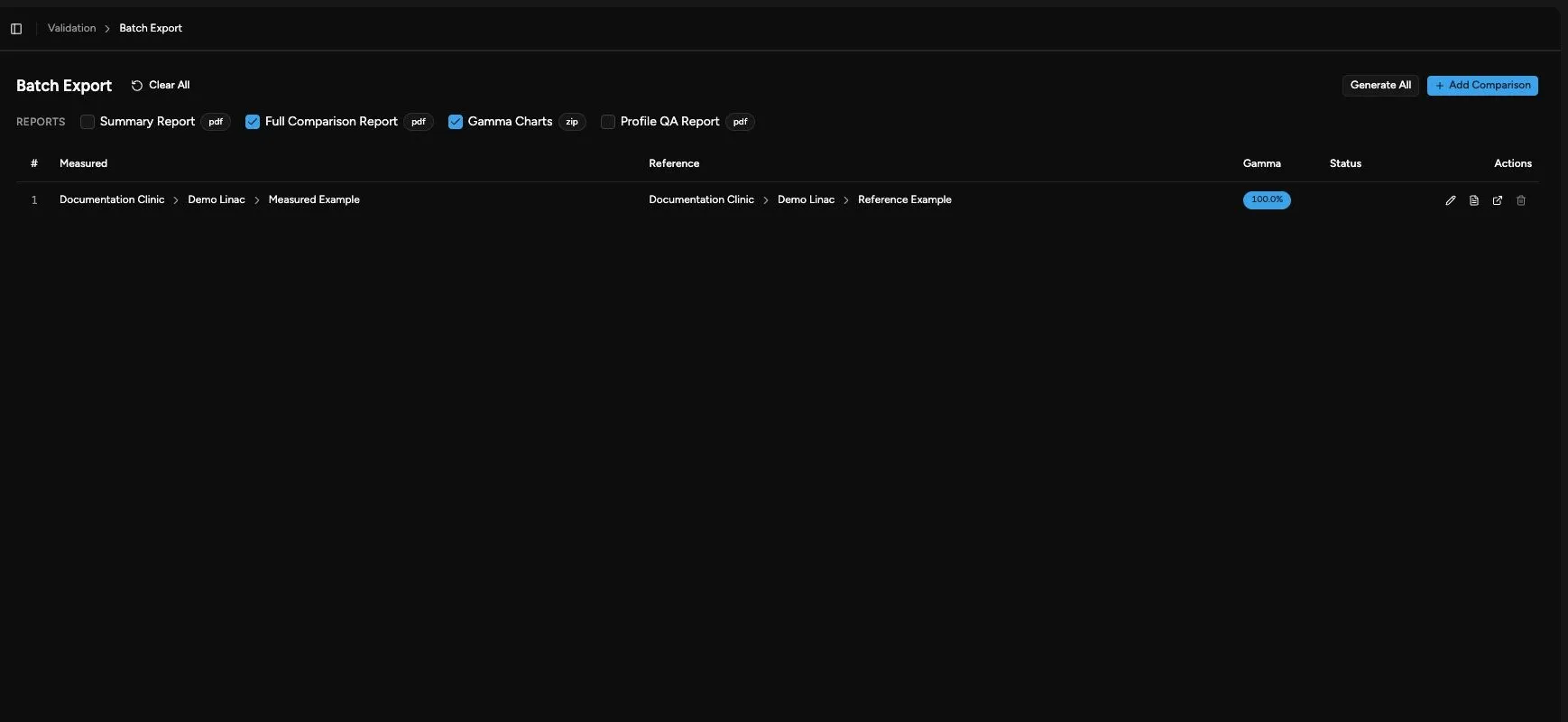
Use Validation > Batch Export when you need report output for several comparisons. Batch export is designed for review sessions where you set up several measured/reference pairs, inspect them independently, then generate the selected reports together.
What Batch Export Keeps
Section titled “What Batch Export Keeps”Each comparison row keeps its own state:
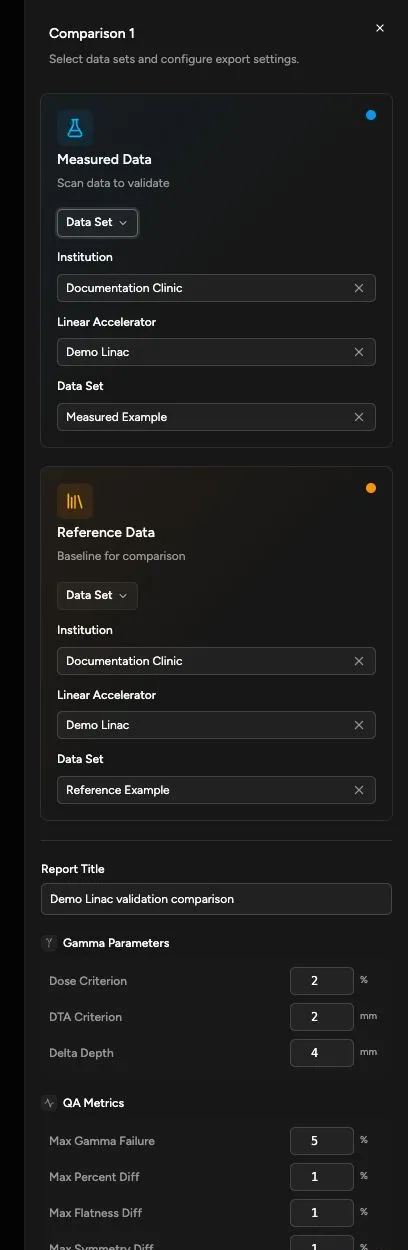
- Measured data selection.
- Reference data selection.
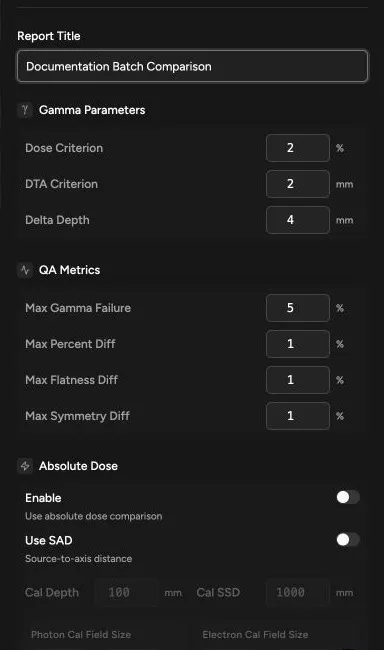
- Report title.
- Gamma parameters, including Quadrant’s depth-matching tolerance.
- QA metric thresholds used to judge the row.
- Absolute dose settings, if that comparison needs cGy-based review.
You can open a queued comparison in the main Validation page, review it, and return to Batch Export without losing the queued rows.
Set Up Batch Export
Section titled “Set Up Batch Export”- Open Validation > Batch Export.
- Choose the report types to generate.
- Edit each comparison row and select measured and reference data.
- Adjust gamma parameters, QA metrics, or absolute dose settings for any comparison that needs different criteria.
- Add more comparisons when needed.
- Review the gamma pass-rate badge for each complete comparison.
Batch export starts with two comparison rows and supports up to five comparison rows.
Review Queued Comparisons
Section titled “Review Queued Comparisons”Use these row actions:
| Action | What It Does |
|---|---|
| Edit | Opens the side panel for selecting data, naming the report, and changing the comparison settings for that row. |
| Generate | Generates the currently selected report types for that row only. |
| Open in Validation | Opens the row in the main Validation page with the same measured/reference selections and settings so you can inspect charts and tables before reporting. |
| Remove | Removes the row when more than the minimum number of rows remains. |
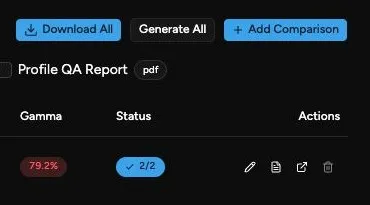
The gamma pass-rate badge gives a quick screening result for the row. Hover it to see the same style of overview used on the Validation page and a link to open the comparison for deeper review.
Generate And Download
Section titled “Generate And Download”- Select the report types at the top of the Batch Export page.
- Click Generate on one row, or click Generate All to generate reports for every complete row.
- Wait for each row’s status badge to show completed output.
- Click Download All.
Quadrant creates one BatchExport.zip containing the staged reports. Reports are grouped by comparison title in the zip, so clear report titles make the downloaded package easier to review later.
If generation is interrupted by navigation or refresh, Batch Export attempts to recover interrupted exports when the page is opened again.
Report Types In Batch Export
Section titled “Report Types In Batch Export”Batch export uses the same report definitions as the report wizard, except it excludes the combined Comparison + Gamma Charts report type. Available report types depend on your account access.
| Report Type | Output |
|---|---|
| Summary Report | |
| Full Comparison Report | |
| Gamma Charts | ZIP |
| Profile QA Report |
Clear All
Section titled “Clear All”Use Clear All only when you want to reset the local batch. It removes all queued comparisons, stops tracking any in-progress report generation, and resets report selections.