
Add a Photon TG-51 Calibration
Use Photon calibrations on Calibrations to add one calibration result for each photon energy and scan-data mode.
Before You Begin
Section titled “Before You Begin”Confirm:
- The intended TG-51 data set is selected.
- The ion chamber and electrometer and their active calibrations are correct.
- Temperature and pressure are saved.
- Photon calibration conditions match the measurement.
- Any intended reference data set is saved.
- No setup changes are pending.
Understand the Photon Table
Section titled “Understand the Photon Table”The table includes percent depth dose (PDD) and tissue-maximum ratio (TMR) values.
| Column | What It Shows |
|---|---|
| Energy | Photon energy and scan-data mode. |
| Initial (cGy/MU) | Saved initial output. |
| Final (cGy/MU) | Saved final output. Select the value for equation details. |
| Change (%) | Percentage change from the saved initial output to the saved final output. |
| dref (mm) | Reference measurement depth. |
| %dd(10) | Saved photon PDD input at the reference depth. |
| %dd(10)x | Beam-quality value used for kQ, including the applicable lead-foil correction. |
| Clinical PDD (%), Clinical TMR (%), or Clinical norm. (%) | Clinical normalization used to convert reference-depth dose to the clinical reference point. The label follows the quantity identified by the saved geometry; Clinical norm. (%) is used when that quantity is unidentified or the table contains mixed quantities. |
| kQ | Chamber-specific beam-quality conversion factor. |
| Pion | Ion recombination correction. |
| Ppol | Polarity correction. |
| Mraw | Average uncorrected final-stage charge reading. |
| Mcorr | Corrected final-stage chamber reading. |
Initial and Final identify saved measurement stages. Change (%) is 100 × (Final / Initial − 1). It appears when both saved outputs are positive; otherwise the cell shows —.
Values with equation details can be selected to review the equation and substituted values.
Add a Photon Calibration
Section titled “Add a Photon Calibration”- Open Calibration > TG-51 > Calibrations.
- Click Add.
- In Select Energy, select the photon energy option.
- Click Continue.
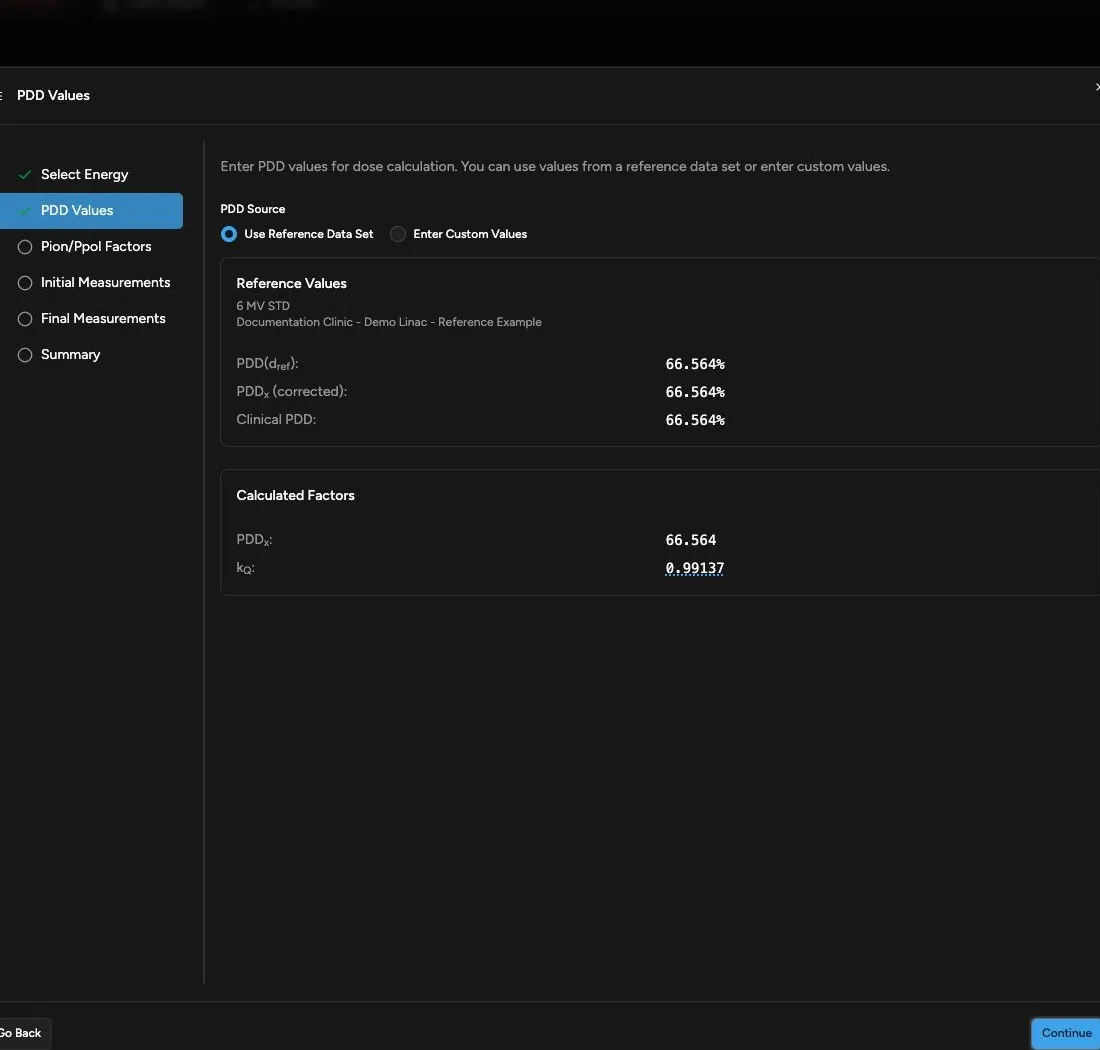
- In PDD Values, select Use Reference Data Set or Enter Custom Values.
- If using reference data, verify the displayed beam-quality values.
- If using custom data, enter values from the verified source.
- Click Continue.
- In Pion/Ppol Factors, select an applicable existing factor set when one is available.
- If needed, click Create New Factors.
- If creating factors, complete the new-factor charge measurements.
- Review the Pion/Ppol factor warnings.
- Click Continue.
- In Initial Measurements, verify the chamber depth.
- Enter or collect the initial readings.
- Click Continue.
- In Final Measurements, verify the chamber depth.
- Enter or collect the final readings.
- Click Continue.
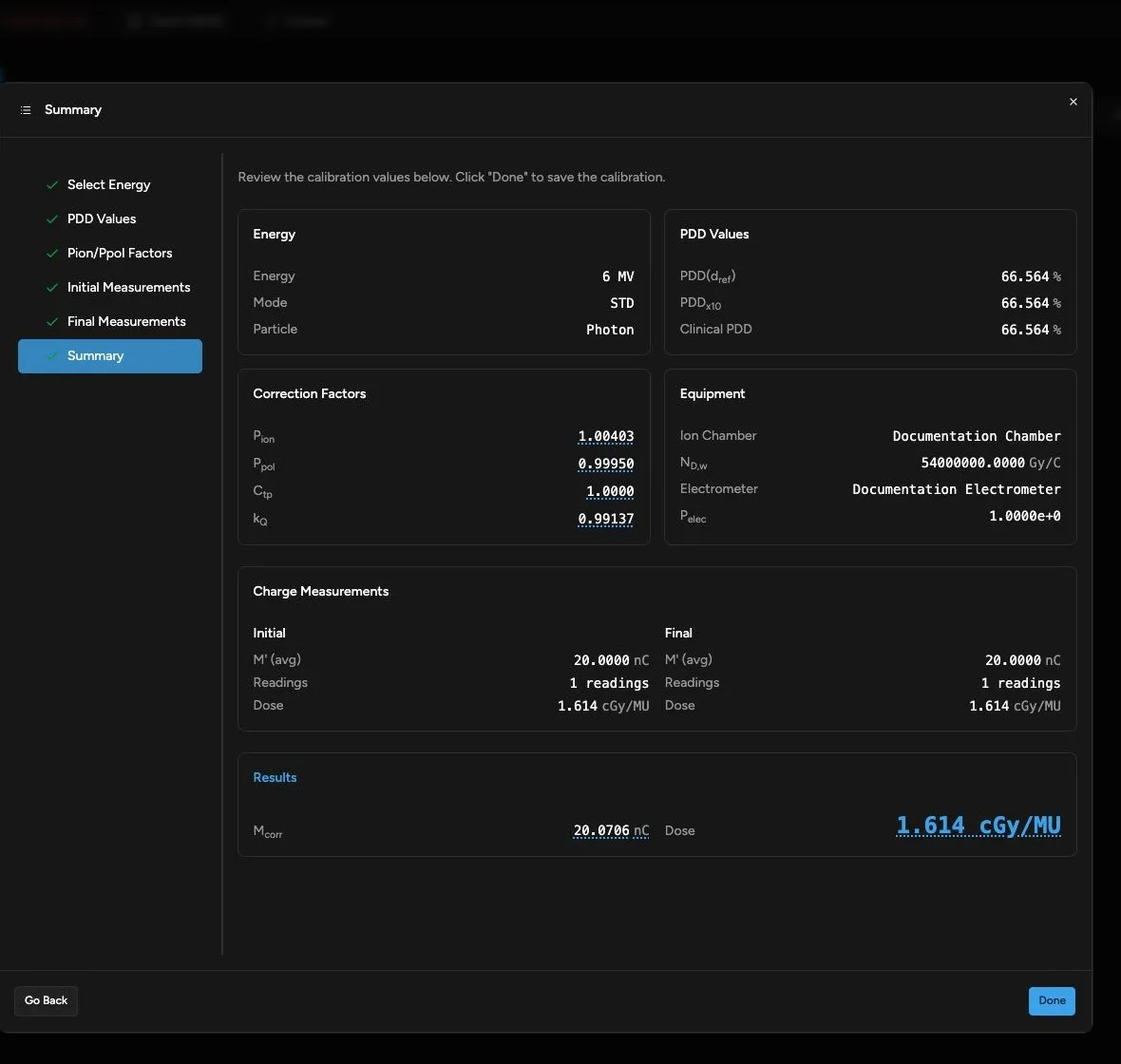
- In Summary, review the warnings, inputs, correction factors, equipment, charge measurements, and dose.
- Click Done.
- Confirm the energy appears in the photon table.
Enter PDD Values
Section titled “Enter PDD Values”Choose:
- Use Reference Data Set when matching, verified scan data is available.
- Enter Custom Values when you need to use values from another verified source.
For custom photon values, enter:
- PDD at Reference Depth (%)
- PDDx10 (%)
- Clinical PDD/TMR (%)
Quadrant warns when PDD(10)x is outside the range used by its kQ calculation. Review the warning and cited protocol section before continuing.
Select or Create Pion/Ppol Factors
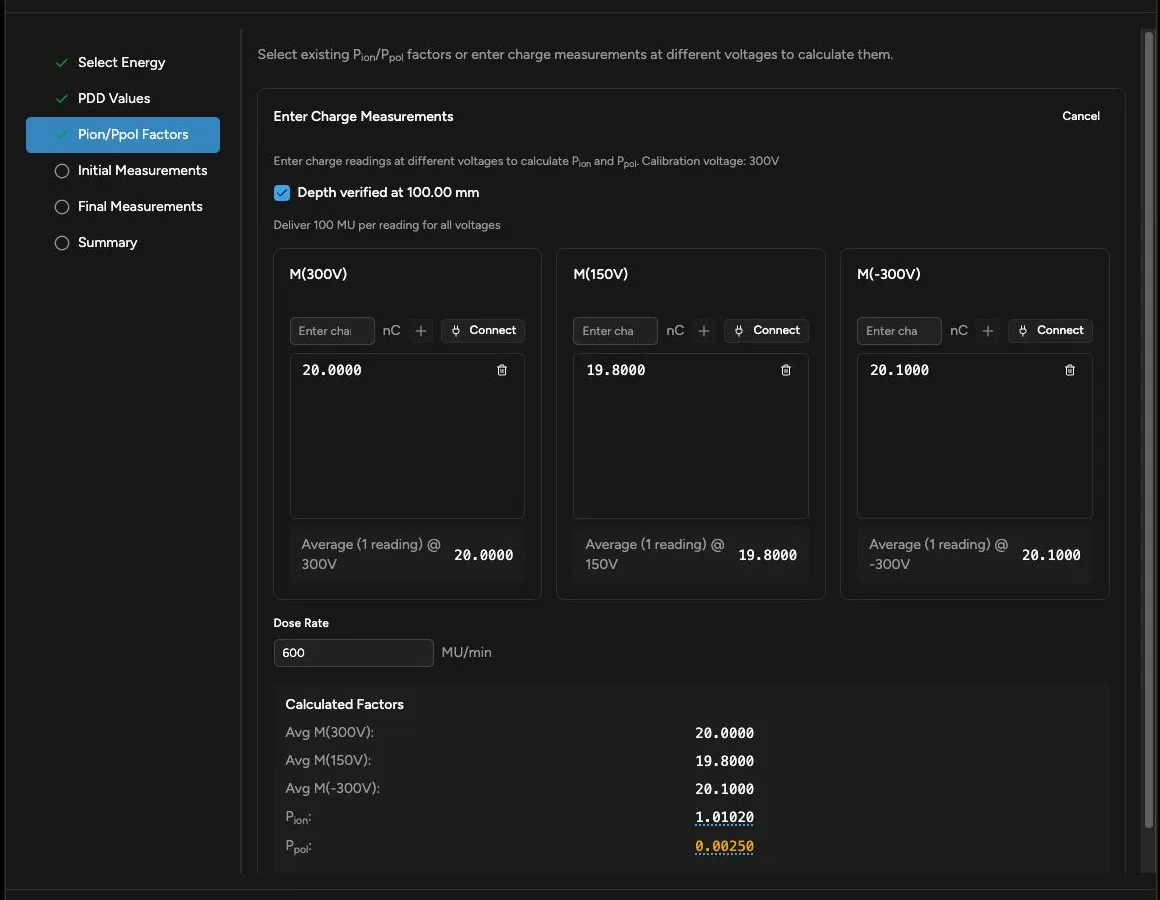
Section titled “Select or Create Pion/Ppol Factors”Existing factors are grouped by chamber, energy, and mode. When creating new factors:
- Verify the chamber is at the displayed reference depth.
- Deliver the prescribed monitor units for each reading.
- Enter or collect readings at the calibration voltage.
- Enter or collect readings at half the calibration voltage.
- Enter or collect readings at the negative calibration voltage.
- Enter the dose rate.
- Review the calculated Pion and Ppol.
Review Pion/Ppol Factor Warnings
Section titled “Review Pion/Ppol Factor Warnings”Review correction-factor warnings before continuing:
- Stale means the factor set has no last-updated date or is more than six months old. Review whether fresh measurements are required before relying on it.
- Pion below 1.0 is physically impossible. Check the charge measurements.
- Pion above 1.05 can have unacceptable uncertainty. Review the measurement setup and consider a different chamber or setup.
- Ppol outside 0.996–1.004 is outside the expected range for a reference-class chamber. Investigate the chamber and measurement before continuing.
Initial and Final Measurements
Section titled “Initial and Final Measurements”Both measurement steps require explicit depth verification. Enter readings manually or collect them with a connected electrometer. Quadrant displays the average, corrected reading, and calculated dose as readings are added.
Edit or Retire a Calibration
Section titled “Edit or Retire a Calibration”Save or discard pending setup changes before selecting a row and clicking Edit or Retire.
Use Edit to revise the selected calibration’s measurements. Review the wizard summary before saving the new version, then use Show revision history on the row to review its saved versions.
Use Retire when the selected energy and mode should no longer be active. Retirement remains pending until you save and preserves calculation history. Follow Retire an Active Calibration to review, restore, or save it and confirm the result.
Resume an Unfinished Calibration
Section titled “Resume an Unfinished Calibration”When Quadrant finds a saved draft for the same particle type, choose whether to resume it or discard it and start again. Confirm the energy and all restored values before continuing.
If the data set also includes electron beams, continue with Add an Electron TG-51 Calibration. When all calibration entries are complete, continue with Export a TG-51 Report.