
Export Data
Use Data > Export to export scans from a selected data set. The export is based on the data set shown in the header.
Which Export Do You Need?
Section titled “Which Export Do You Need?”| Need | Use |
|---|---|
| A quick CSV or clipboard copy of the scan table | Data > Scans, then Table in the scan table toolbar |
| A vendor or system-specific scan data file | Data > Export |
| A Databook-format export from the Databook view | Data > Databook, then Export |
Start an Export
Section titled “Start an Export”- Open Data > Export from the sidebar.
- If no data set is selected, choose the institution, linear accelerator, and data set.
- Confirm that the selected data set is the one you intend to export.
- Choose the output format and export options.
- Click Export.
Quadrant shows progress while the export is prepared. When it completes, the exported file downloads as a zip file.
For more detail on the data set selector, see Select a Data Set.

Output Formats
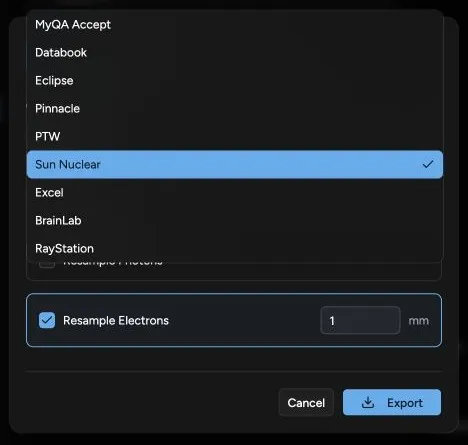
Section titled “Output Formats”Available export formats include:
- MyQA Accept
- Databook
- Eclipse
- Pinnacle
- PTW
- Sun Nuclear
- Excel
- BrainLab
- RayStation
Choose the format expected by the receiving system or review workflow.
Resolution Options
Section titled “Resolution Options”You can resample photon scans, electron scans, or both for the exported file. When resampling is enabled, enter the resolution in millimeters.
Databook Export Options
Section titled “Databook Export Options”When exporting in Databook format, choose the photon calibration condition:
- SSD
- SAD
For data sets with electron reference fields, choose the electron reference field if Quadrant prompts for it.
Sun Nuclear Export Options
Section titled “Sun Nuclear Export Options”Sun Nuclear export may also ask for an electron reference field when electron data is present.
Before You Use the Export
Section titled “Before You Use the Export”If the receiving system shows unexpected data, return to Data > Scans and confirm the selected data set before changing export settings.