
Import Wedge Factors
Use Wedge Factor Import to calculate wedge factors from matching open and wedged point-dose measurements. Quadrant saves the accepted wedge factors in the selected data set. It does not add the source measurements or scans.
When to Use This Workflow
Section titled “When to Use This Workflow”Use this workflow when:
- your OPAB or OmniPro ASCII file contains point-dose measurements;
- each wedged measurement has a matching open measurement made with the same beam conditions; and
- you need the calculated wedge factors, not the source measurements as scan records.
Use File Import instead when you need to import the scans themselves. Use EDW Import when you need the guided enhanced dynamic wedge workflow and its scan-processing behavior.
Before Importing
Section titled “Before Importing”Confirm that:
- the header shows the data set that should receive the factors;
- the destination linear accelerator has the measured energies, modes, and wedge models configured;
- the file contains usable open and wedged point-dose measurements with energy, field size, depth, and SSD information;
- you know the physical wedge orientation used for the measurements; and
- you have kept the original measurement file for verification.
Supported files include OPAB files and OmniPro ASCII files with .asc, .txt, or .csv extensions. Only point-dose measurements are used. Other records in the file are not added to the data set.
Import the Measurements
Section titled “Import the Measurements”- Open Data > Import.
- Select the institution, linear accelerator, and destination data set.
- Choose Wedge Factor Import.
- Add one OPAB or OmniPro ASCII measurement file.
- Confirm the detected file format.
- Confirm or change Wedge Orientation. Quadrant suggests an orientation when it recognizes one in the file name.
- Click Import Wedge Factors.
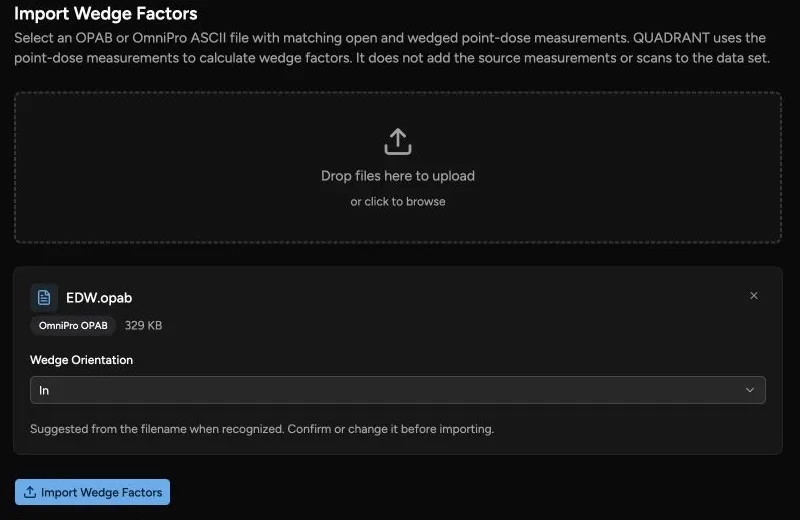
Do not leave the wizard while Importing… is displayed. The wizard unlocks when the request finishes.
Review the Import Result
Section titled “Review the Import Result”When the import finishes, Quadrant displays Import complete and the number of factors created. If factors were created, each entry includes its energy, mode, wedge, field size, depth, SSD, and calculated factor.
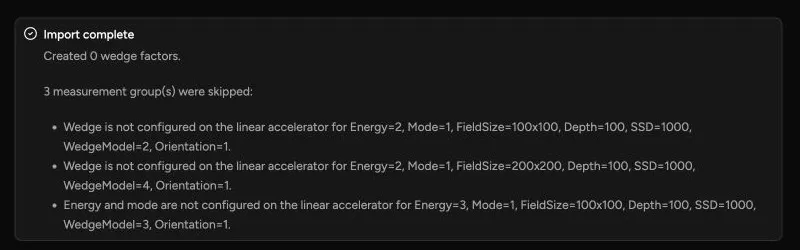
The factor is calculated from the wedged dose divided by the matching open dose. Quadrant preserves the accepted open and wedged dose values with the factor.
If some measurement groups cannot be imported, the same result also states how many were skipped and explains why. The example above shows a file whose measured wedges and energy were not configured on the selected linear accelerator. Accepted factors can still be created when another group is skipped.
Understand Skipped Measurements
Section titled “Understand Skipped Measurements”| Message Meaning | What to Check |
|---|---|
| No matching open measurement | Confirm that the file contains an open point-dose measurement with matching energy, mode, field size, depth, and SSD. |
| No usable dose | Check that both measurements contain positive point-dose values. |
| Normalized dose data | Export ratio-compatible point-dose readings rather than a normalized scan whose usable reading has been replaced by 1. |
| Invalid beam geometry | Check the field size, depth, and SSD metadata in the source file. |
| Energy or mode is not configured | Confirm the measured energy and mode are configured on the selected linear accelerator. |
| Wedge is not configured | Confirm the wedge angle and type are configured on the selected linear accelerator. |
| Wedge orientation is missing | Choose Wedge Orientation and import again. |
| Wedge factor already exists | Review the existing record under Wedge Factors. Quadrant does not create a duplicate. |
| Repeated doses disagree | Review the repeated measurements in the source file. Quadrant skips the group when the readings disagree beyond the supported agreement tolerance. |
Confirm the Saved Factors
Section titled “Confirm the Saved Factors”- Return to Data > Scans.
- Confirm that the header still shows the intended data set.
- Open Wedge Factors.
- Compare the created count with the import result.
- Review the visible wedge, open value, wedge value, and calculated factor against the original measurement file.
For more information about the table, see View a Data Set.
If the import went into the wrong data set, follow Delete the Imported Wedge Factors before reimporting. Deletion is permanent and may not be available for every account.