
Set Up a Comparison
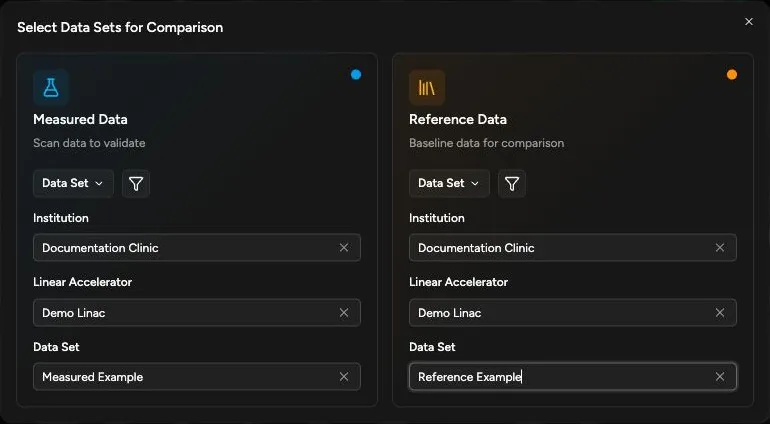
A validation comparison has two sides. Quadrant compares the measured side to the reference side, so the direction matters.
| Side | Meaning |
|---|---|
| Measured Data | The source being checked, usually a new measurement set, annual set, monthly set, or imported TPS/measurement data you want to evaluate. |
| Reference Data | The comparison target Quadrant checks the measured data against. This can be a specific data set or, when available, an aggregate reference. A data set does not need the Baseline label to be selected; see Baseline. |
Select Comparison Data
Section titled “Select Comparison Data”- Open Validation.
- If the selector dialog does not open automatically, click the measured/reference breadcrumb in the page header.
- In Measured Data, select the source you want to check.
- In Reference Data, select the source you want to use as the comparison target.
- Close the selector when both sides are correct.
Quadrant stores the current validation selection in the page URL and restores the last validation selection during the session. This lets you navigate away and return without rebuilding the comparison.
Data Sets And Aggregates
Section titled “Data Sets And Aggregates”Use a data set when you want one side of the comparison to be a specific data set, such as a commissioning data set or a previously approved annual data set.
Use an aggregate when your validation process is based on compiled data rather than one uploaded data set. Wedge factor comparison is available only when both sides are data sets.
Choose an Aggregate Set
Section titled “Choose an Aggregate Set”An aggregate set must already exist and be available to your account before you can select it.
The screenshots below show Reference Data. Use the same controls in any data card where Aggregate is available.
- Open Select Data Sets for Comparison.
- Choose the comparison side where you want to use an aggregate.
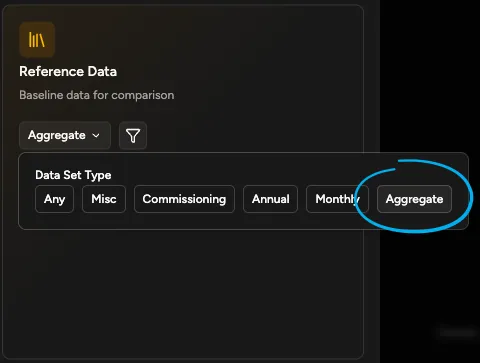
- In the chosen data card, click the type and source control above the selection fields. Before you apply a filter, this control reads Data Set.
- Under Data Set Type, click Aggregate.
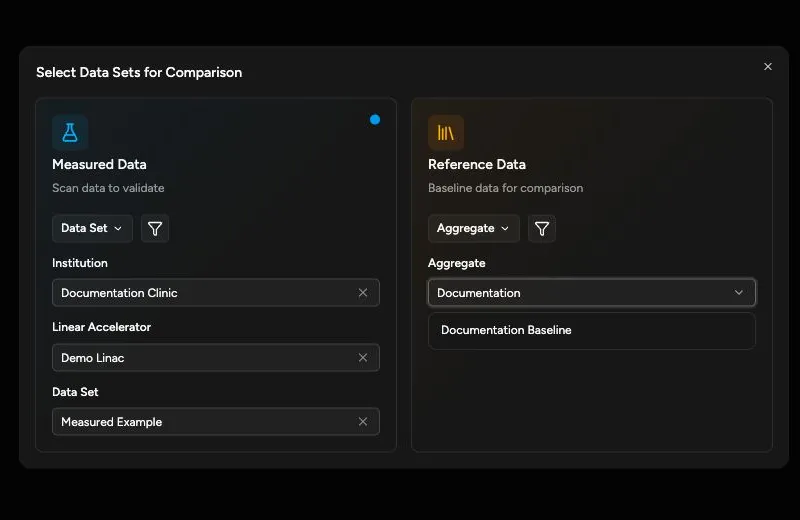
- Open the Aggregate field in the chosen data card.
- Choose the aggregate set you want to use.
- Close the selector.
- Confirm that the corresponding data breadcrumb shows the aggregate set name.
The comparison loads when the selected measured and reference sources contain compatible scans. To return either side to a data set, reopen the type and source control in that data card, which now reads Aggregate, select a data set type under Data Set Type, then choose the Institution, Linear Accelerator, and Data Set.
If the Aggregate list is empty, no aggregate sets are available to your account. Contact your team if you expect to have access to one.
Validation Settings
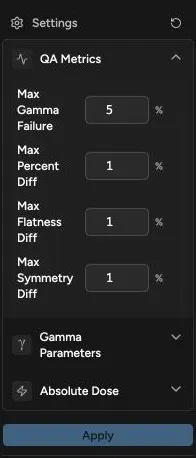
Section titled “Validation Settings”Open Settings in the sidebar to adjust comparison criteria.
| Section | Typical Use |
|---|---|
| QA Metrics | Set the tolerances used to flag results. For example, Max Gamma Failure is the allowed failed-point percentage, so the displayed pass-rate threshold is 100% - Max Gamma Failure. |
| Gamma Parameters | Set the gamma dose criterion, distance-to-agreement criterion, and Delta Depth. Delta Depth is Quadrant’s depth-matching tolerance in millimeters, not a clinical beam parameter. |
| Absolute Dose | Switch from relative-dose comparison to cGy comparison and define the calibration depth, geometry, and field sizes used for that conversion. |
Click Apply Changes after editing settings. The comparison updates using the applied values.
When No Comparison Appears
Section titled “When No Comparison Appears”If the page does not show comparison rows:
- Confirm that the measured side has a source selected.
- Confirm that the reference side has either a data set or aggregate selected.
- Check whether the selected measured and reference sources contain matching scan types, energies, field sizes, depths, SSDs, modes, and wedges.
- If wedge factors are empty, confirm that both sides are data sets; wedge factor comparison is not available when either side is an aggregate.