Select a Data Set
Most Data pages start with the same choice: which data set are you working with?
If no data set is selected when you open a Data page, Quadrant opens the selector automatically. After a data set is selected, the selection appears as breadcrumbs in the page header.
Click the breadcrumbs to reopen the selector and change the current institution, linear accelerator, or data set.

Selection Order
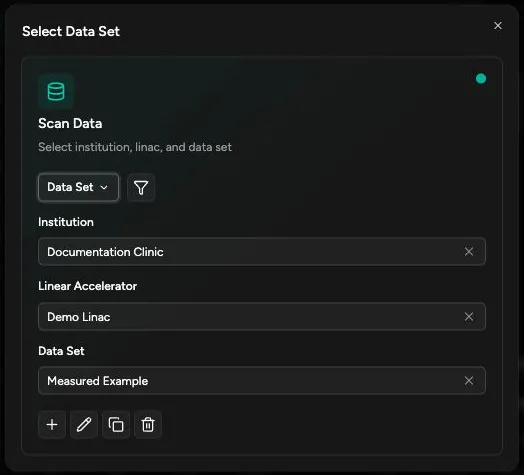
Section titled “Selection Order”Choose items from broadest to most specific:
| Field | What It Means |
|---|---|
| Institution | The clinic, hospital, or other site where the linear accelerator belongs. |
| Linear Accelerator | The treatment unit whose beam data you want to review, import, or export. If a site has more than one unit, confirm the machine name carefully before continuing. |
| Data Set | The selected collection of measurements for one linear accelerator, usually organized by source and purpose. |
Each choice narrows the next list. For example, the data set list depends on the selected linear accelerator.
Filtering the Data Set List
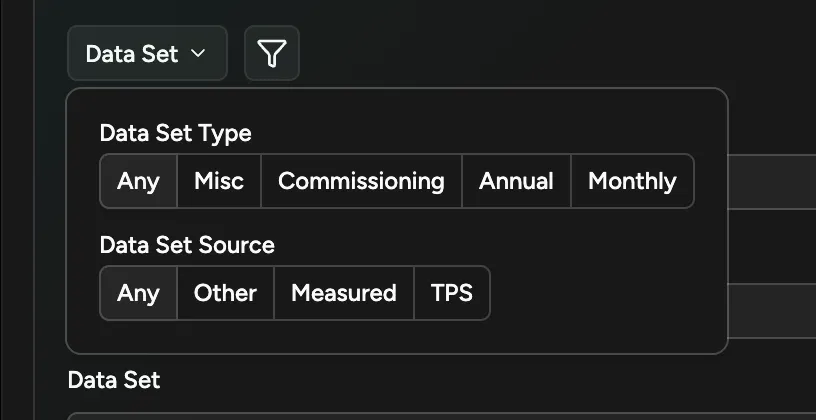
Section titled “Filtering the Data Set List”If the linear accelerator has many data sets, use the type/source control above the selector to narrow the list.
| Filter | Choices |
|---|---|
| Source | Any, Measured, TPS, Other |
| Type | Any, Misc, Commissioning, Annual, Monthly |
Filtering only changes what appears in the picker. It does not change the data set itself.
Data Set Actions
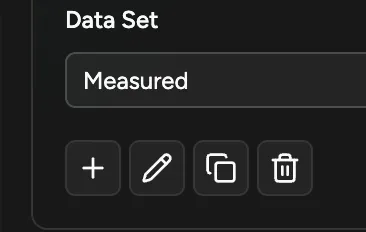
Section titled “Data Set Actions”When you have write access, action buttons appear near the data set field.
| Action | When It Appears | What It Does |
|---|---|---|
| Add data set | After selecting a linear accelerator | Creates a new data set under that linear accelerator. |
| Edit data set | After selecting a data set | Changes the data set name, source, or type. |
| Copy data set | After selecting a data set | Creates a new data set with copied scan data. Wedge factors are not copied. |
| Delete data set | After selecting a data set | Deletes the selected data set. This cannot be undone. |
Copy a Data Set Safely
Section titled “Copy a Data Set Safely”Copy data set creates a new data set with the same source, type, and Baseline setting as the selected data set. It copies the scan data, but it does not copy the records shown under Wedge Factors.
Use Copy data set only when the new data set needs the scan data alone.
Create and Verify the Replacement
Section titled “Create and Verify the Replacement”Create and Import the Replacement
Section titled “Create and Import the Replacement”To create a complete new data set from the original source:
- Keep the original measurement or export files available.
- In the selector, choose the linear accelerator for the new data set.
- Click Add data set.
- Enter the name, source, type, and intended Baseline setting.
- Click Create.
- Open Data > Import.
- Repeat the original import workflow that created the scan and wedge-factor records.
Before Leaving the Import Wizard
Section titled “Before Leaving the Import Wizard”Confirm the completion state for the import workflow and note the details you will need during verification:
- File Import displays Import Successful and an Import Summary, including Files Imported.
- MatriXX Import displays Import Complete, the number of scans created, and, when applicable, a Wedge Factors Created table.
- Wedge Factor Import displays Import complete, the number of factors created, their beam conditions and calculated values, and any measurement groups that were skipped.
- TPS Dose Extraction displays Extraction completed successfully! and, when available, the number of scans extracted.
- Other workflows may display Import Complete with fewer details. Keep the import preview or original clinical source available for verification.
- Record the completion details shown for the import workflow.
- Return to Data > Scans.
Verify the Replacement
Section titled “Verify the Replacement”Under Scan Data, compare the number of imported scans and check the scan type, energy, field size, depth, SSD, and wedge against the import summary, import preview, or original source.
Under Wedge Factors, compare the number of records and check the visible group, wedge, open value, wedge value, and factor. For MatriXX Import, compare these records with the Wedge Factors Created table, including its energy, field size, depth, and SSD details. For Wedge Factor Import, compare them with the created-factor entries in the Import complete result.
For guidance on the data set fields, see Create a Data Set. For import instructions, see Import Data or Import Wedge Factors.
Previous Selection
Section titled “Previous Selection”When you return to a Data page, Quadrant may show the institution, linear accelerator, and data set you used last.
Search by Scan Details
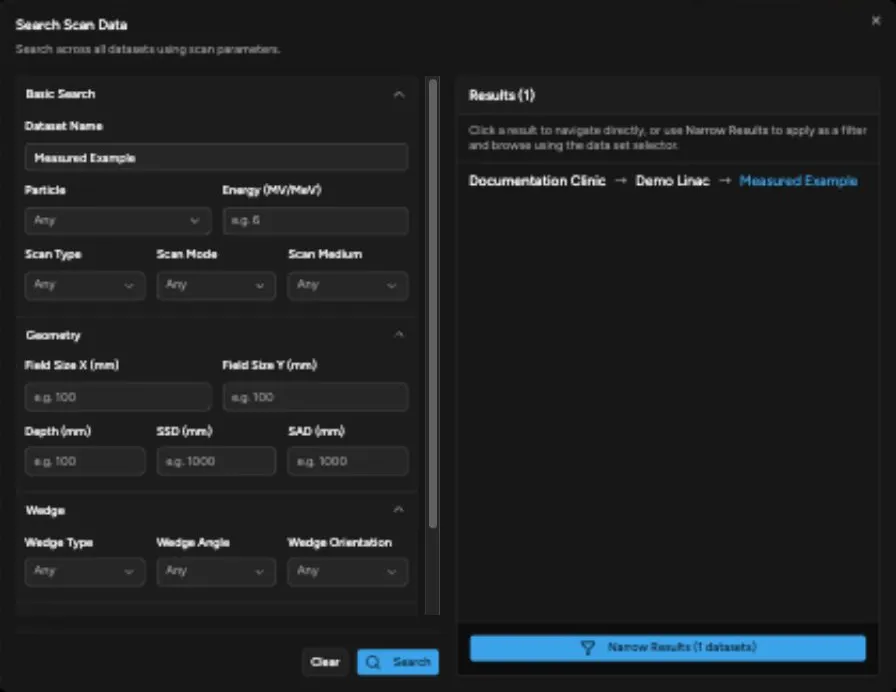
Section titled “Search by Scan Details”Some accounts include Search Scan Data, which helps you find a data set when you know scan details but not where the scan is stored. It searches for scans across all institutions, linear accelerators, and data sets you can access.
Use it when you know scan details but do not know which data set contains the scan. You can search by details such as data set name, particle, energy, scan type, scan mode, field size, depth, SSD, SAD, and wedge information.
Each field you fill in narrows the search. For example, if you enter photon, 6 MV, PDD, and 100 mm depth, Quadrant looks for data sets containing a scan that matches all of those details.
Search results can be used in two ways:
- Click a result to go directly to that data set.
- Use Narrow Results to limit the selector lists to matching institutions, linear accelerators, and data sets.
If Search Scan Data is not available for your account, choose the institution, linear accelerator, and data set directly.